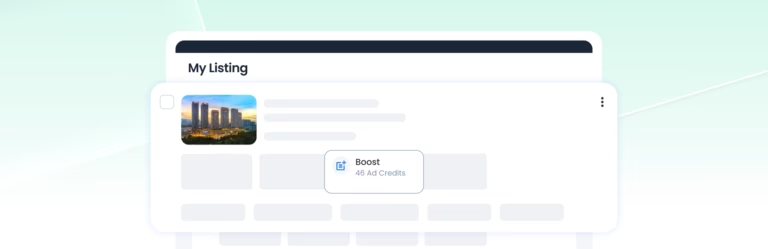

Repost refreshes your listing’s posting date and extends its expiry without creating a new listing.
Auto-Repost schedules recurring Reposts during a selected campaign period, so you do not need to Repost manually each time.
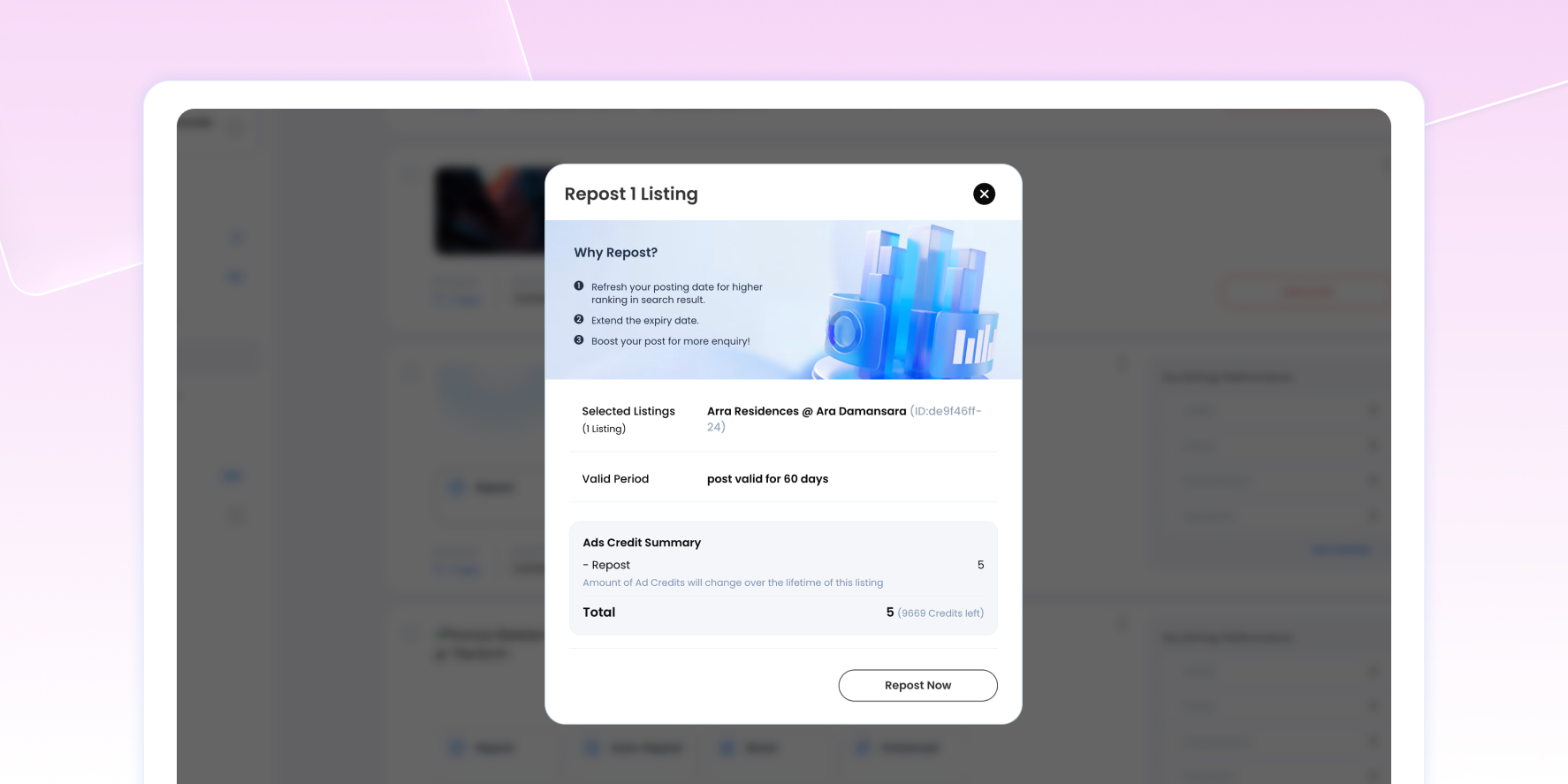
Repost Your Listing
What happens when you Repost a listing?
Repost updates your listing’s posting date to the current date and time without creating a new listing. A successful Repost:
- Refreshes the listing’s ranking based on the new posting date.
- Extends its expiry by another 60 days from the new posting date.
How do you Repost a listing manually?
To Repost an eligible listing:
- Log in to your AgentPro account.
- Go to Listing → My Listing.
- Find the listing you want to Repost.
- Select Repost from the listing card.
- Review the Repost details and required Ad Credits.
- Confirm the Repost.
How much does Repost cost?
A manual Repost costs 8-10 Ad Credits. The required Ad Credits are shown before confirmation and deducted when you activate Repost.
If you do not have enough Ad Credits, you will need to top up before you can activate Repost.
What happens if I Repost a Boosted listing?
You can Repost a listing while Boost is active. Repost refreshes the listing’s posting date and ranking without cancelling the active Boost.
Boost continues until its existing expiry.
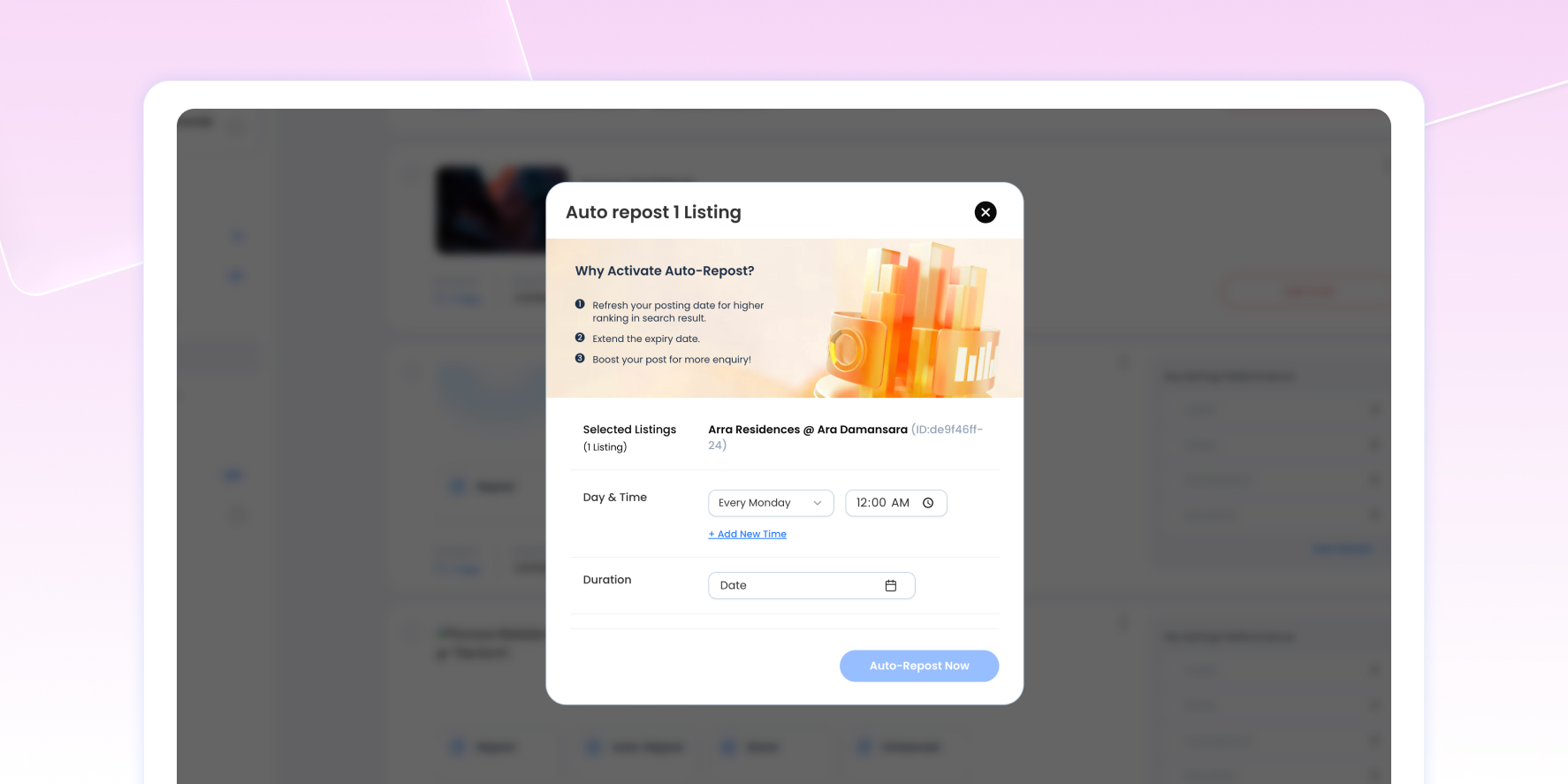
Auto-Repost Your Listing
How does Auto-Repost work?
Auto-Repost performs Repost automatically at scheduled times during your selected campaign period. Each successful Auto-Repost:
- Refreshes the listing’s posting date to the current date and time.
- Refreshes the listing’s ranking based on the new posting date.
- Extends the listing’s expiry by another 60 days from the refreshed posting date.
The campaign end date is displayed after activation.
How do you set up Auto-Repost?
- Log in to your AgentPro account.
- Go to Listing → My Listing.
- Select Auto-Repost for an individual listing, or use bulk select to apply it to multiple eligible listings.
- Set the day and time for the scheduled Repost.
- Select how long you want Auto-Repost to run.
- Review the schedule and campaign end date, then confirm to activate Auto-Repost.
When does the first Auto-Repost happen?
The first Auto-Repost happens on the first scheduled day and time, which may be different from when you activate Auto-Repost. Further Reposts follow the selected schedule during the campaign period.
Can I set different Auto-Repost schedules when selecting multiple listings?
No. When you bulk select multiple listings for Auto-Repost, the same day, time and duration apply to all selected listings. You cannot set a different schedule for individual listings within the same booking.
Can Auto-Repost keep extending my listing’s expiry?
Yes. Each successful Auto-Repost extends the listing’s expiry by another 60 days from the refreshed posting date. Auto-Repost can therefore continue extending the listing’s expiry while the campaign is active and the listing remains eligible.
When are Ad Credits deducted for Auto-Repost?
Ad Credits are deducted upfront when you activate Auto-Repost. The total number of credits required is calculated based on the schedule you select, and the full amount will be deducted once you confirm the activation.
What happens if I do not have enough Ad Credits for Auto-Repost?
If you do not have enough Ad Credits when the next Auto-Repost is scheduled, that Repost will not be applied and no credits will be deducted.
Auto-Repost will pause until you have sufficient Ad Credits.
Where can I check my Auto-Repost credit usage?
You can review your credit usage through Credit Consumption in AgentPro. You can access it from:
- Top-right navigation bar: Ad Credits → Credit Consumption
- Profile Card: Ad Credits → Credit Consumption
Can I stop Auto-Repost before the campaign ends?
No, you cannot turn off an active Auto-Repost yourself.