

AgentPro gives you one place to manage your account and agent activities.
This tour shows you where to find the main features and what you can do in each area.
Explore the Menu
Use the Menu to move between the main AgentPro features:
- Profile Card — Manage your account, public profile, reviews and credits.
- Dashboard — Get an overview of your account, listings, leads and activity.
- Met Request — Review matched property opportunities and track deals.
- Seller Requests — Review property selling requests, contact owners, arrange appointments and track progress.
- Leads — Manage and follow up with your enquiries.
- Listing — Create, manage, promote and track your property listings.
- Featured Agent — Explore Featured Agent campaigns and manage your Featured Slots.
- Rewards — Track and claim Rewards to earn Ad Credits.
- Notifications — Check important updates and activities.
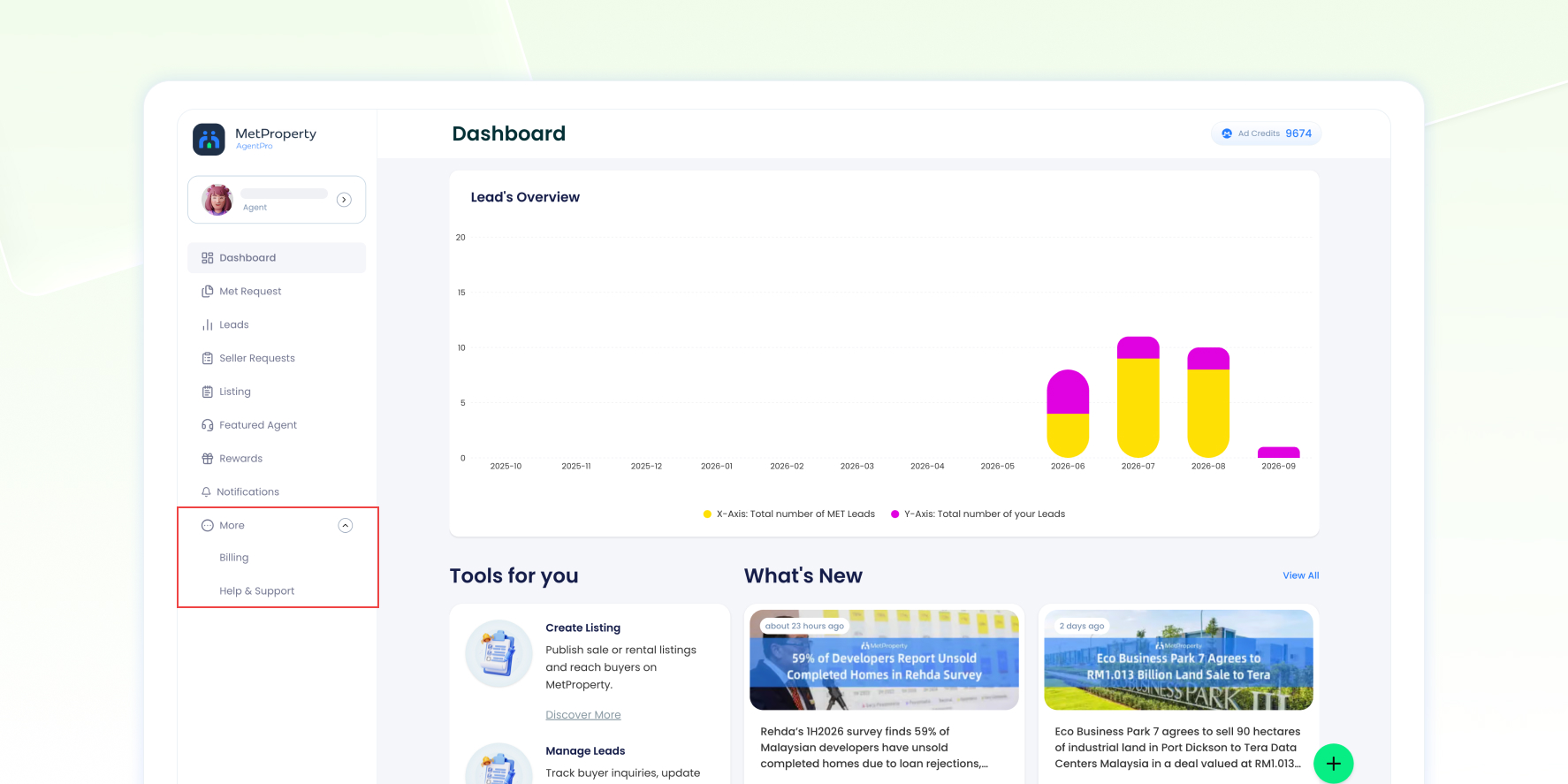
- More — Access Billing and Help & Support.
Select the section that matches what you want to do and use the available tools to manage your activity.
Profile Card
Manage Your Account and Profile
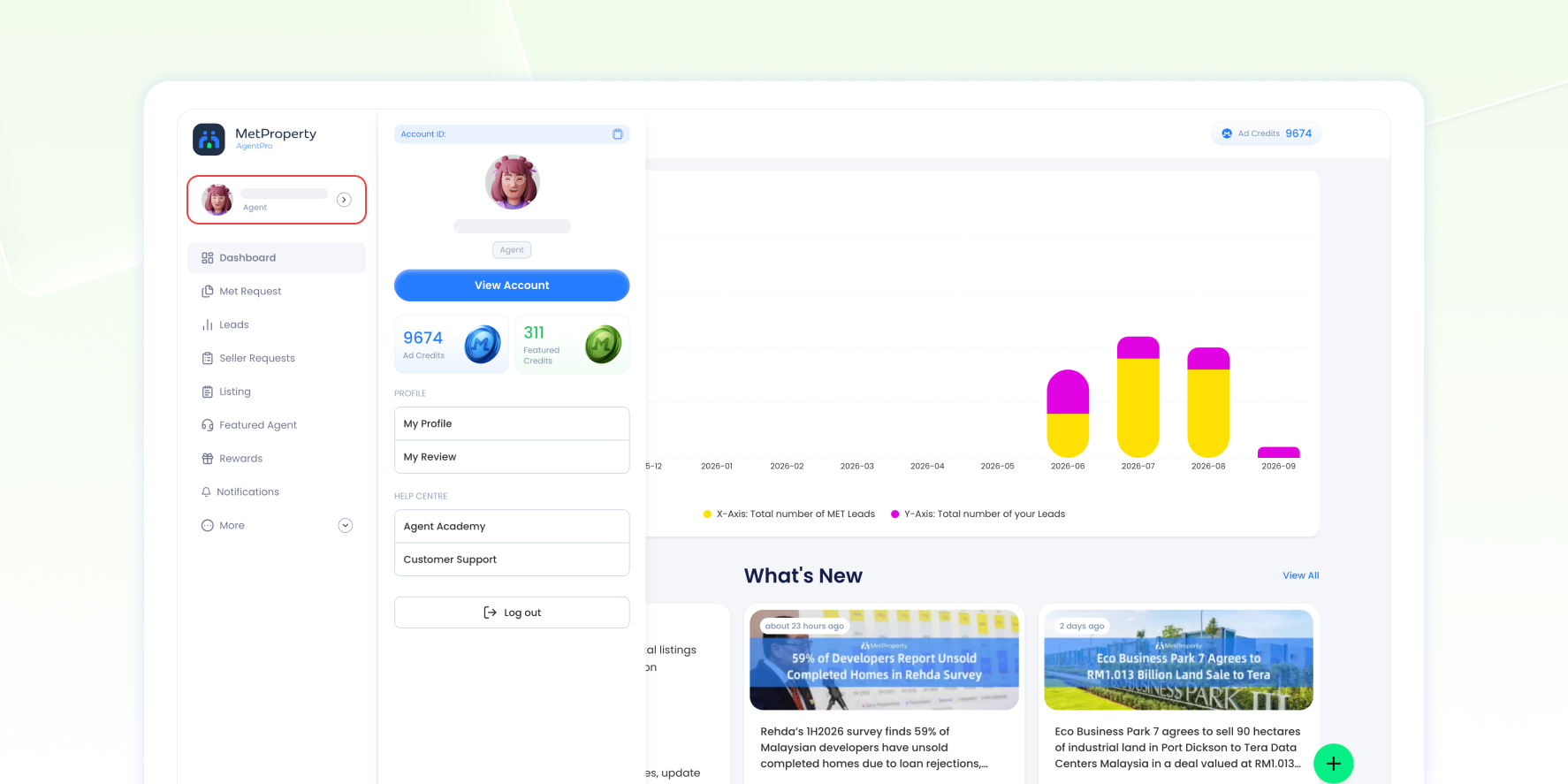
Open your Profile Card to access your account information, public profile, reviews and credits.
Manage Your Account Information
Select View Account to:
- Check your Account Type
- Manage your Personal Information
- Update your Contact Information
- Change your Password
- Manage your Notification Preference
If you want to upgrade your Account Type, contact MetProperty Customer Support.
Check Your Credit Consumption
Select Ad Credits or Featured Credits from your Profile Card to open Credit Consumption, where you can check your available credits and review your credit usage.
Update Your Agent Profile
Select My Profile to:
- Upload your profile and background photos
- View your Achievements
- Edit your Public Profile URL
- Update your Social Profiles
- Update your Agency Information
- Update your About Me
Check and Manage Your Reviews
Select My Review to check your overall Review Score, Total Reviews, Reply Rate and 5-Star Reviews.
Use filters such as All, To Reply and Replied to find and manage your reviews.
Access the Help Centre
From your Profile Card, open the Help Centre to access:
- Agent Academy — Find learning resources to help you use AgentPro.
- Customer Support — Find available ways to contact MetProperty Customer Support.
Dashboard
Check Your AgentPro Overview
From the Dashboard, you can quickly check what is happening across your AgentPro account and identify anything that needs your attention.
You can check:
- Membership, Ad Credits and Featured Credits
- PowerUp tools usage
- Listing status and overall Listing Performance
- Reward progress
- MET Listing activity
- Recent and unread leads
- Lead activity over time
You can also quickly access AgentPro tools and the latest MetProperty updates.
Met Request
Manage Property Opportunities
In Met Request, use the Request and Deal tabs to manage opportunities at different stages.
- Request — Review new or previous Met Requests and accept or reject new opportunities.
- Deal — Track accepted requests that develop into deals, check conversion fees and submit payment receipts.
The general journey is:
Review Met Request → Accept or Reject → Find suitable buyers → Manage buyer enquiries in MET Leads → Track the opportunity in Deal |
After accepting a Met Request, start looking for suitable buyers and monitor new enquiries in MET Leads. If the opportunity develops into a deal, go to the Deal tab to view the transaction and track its current stage.
Seller Requests
Help Property Owners Sell Their Properties
In Seller Requests, you can receive property selling requests from owners who need help selling their properties.
Unlike Met Request, Seller Requests allows owners to submit their property details without creating a MetProperty account or logging in.
The general journey is:
Receive Invitation → Accept Request → Contact Owner → Arrange Appointment → Market Property → Owner Confirms Sale |
You can:
- Review property details and accept or reject invitations.
- Contact owners and update your follow-up progress.
- Schedule and manage appointments.
- Help owners market their properties through your preferred channels.
- Track the request until the owner confirms a successful sale.
MetProperty initially invites 10 agents for each Seller Request. The first 5 agents to accept will receive the owner’s contact details and can proceed with the request. Once all five slots are filled, the remaining invitations expire.
Important: Contact the owner before the deadline shown in AgentPro. If you do not follow up, your request may expire and be assigned to another agent.
Creating a listing on MetProperty is optional. You can use your existing marketing channels, MetProperty or both.
Leads
Manage and Follow Up with Leads
In Leads, you can review enquiries, understand customer needs and activity, follow up and track their progress.
There are two lead types:
- MET Leads — Enquiries related to MetProperty opportunities you are handling. You can also use Set Appointment to arrange appointments and track the deal journey.
- Your Leads — Enquiries generated from your own listings, Agent Profile or Project Gem.
Listing
Create and Manage Your Listings
In Listing, you can manage your property listings from creation through ongoing management and performance tracking.
You can:
- Create and publish new listings
- Manage existing listings through My Listing
- Check listing statuses
- Edit published listings and manage expired listings
- Review listing cards and Quality Score
- Use Power Up tools to improve listing visibility and presentation
- Manage multiple listings using Bulk Select
- Track Leads, Views, Impressions and Favourites
Listing-level Powered-Up tools include Repost, Auto-Repost, Boost, Auto-Boost, Enhance and Auto-Enhance. You can activate these tools on eligible active For Sale and For Rent listings after the listing has been created.
Featured Agent
Explore Featured Agent Campaigns
Featured Agent helps increase your agent profile visibility and gives you 7 Featured Slots to showcase selected property listings.
Go to Featured Agent to check your Featured Slots and view campaigns under Active, New Launches, Project and Residential Area.
Each campaign shows its category, available slots and required Featured Credits. Slot availability and Featured Credit requirements vary by campaign.
Check or Top Up Featured Credits
To check your available Featured Credits and credit usage, go to:
Profile Card → Featured Credits → Credit Consumption
If you need more Featured Credits, select + Top Up to view the available top-up options.
Rewards
Track and Claim Rewards
In Rewards, you can track your progress towards eligible activities and targets that earn Ad Credits.
The Reward journey is:
Complete the required activity → Track your progress → Unlock your Reward → Claim it → Receive Ad Credits |
Once a Reward is unlocked, claim it to receive the available Ad Credits.
Notifications
Keep Up with Notifications
Use Notifications to keep track of important AgentPro updates, including new Seller Request invitations.
You can filter notifications by Leads, Rewards, Reviews, Achievements, Listings or System. Each notification shows its title, details and time received.
When you receive a New Seller Request notification, open Seller Requests to review the invitation and respond before it expires.
Select Mark All as Read to mark all unread notifications as read at once.
More
Check Billing and Transactions
Go to More → Billing to review your billing history and past transactions.
You can:
- Check the package purchased, transaction ID, payment date and amount paid
- Filter billing records by package or date range
- Download individual invoices
- Export billing records as CSV
- Check your current Ad Credit balance
Get Help and Support
Go to More → Help & Support when you need assistance.
You can contact MetProperty by email, inquiry form or WhatsApp.
Frequently Asked Questions
Where should I start in AgentPro?
Start with the Dashboard to get an overview of your account, listings, leads, credits, Rewards and recent activity. Use the Menu to access the feature you need.
What is the difference between MET Leads and Your Leads?
MET Leads are enquiries related to MetProperty opportunities you are handling. Your Leads are enquiries generated from your own listings, Agent Profile or Project Gem.
What should I do after accepting a Met Request?
After accepting a Met Request, look for suitable buyers and manage related enquiries in MET Leads. If the opportunity develops into a deal, track its progress under the Deal tab in Met Request.
Where can I check my Ad Credits and Featured Credits?
Open your Profile Card and select Ad Credits or Featured Credits to check your available credits and review your credit usage.
Where can I get help with AgentPro?
Open the Help Centre from your Profile Card to access Agent Academy resources and Customer Support. You can also go to More → Help & Support to contact MetProperty by email, inquiry form or WhatsApp.


