
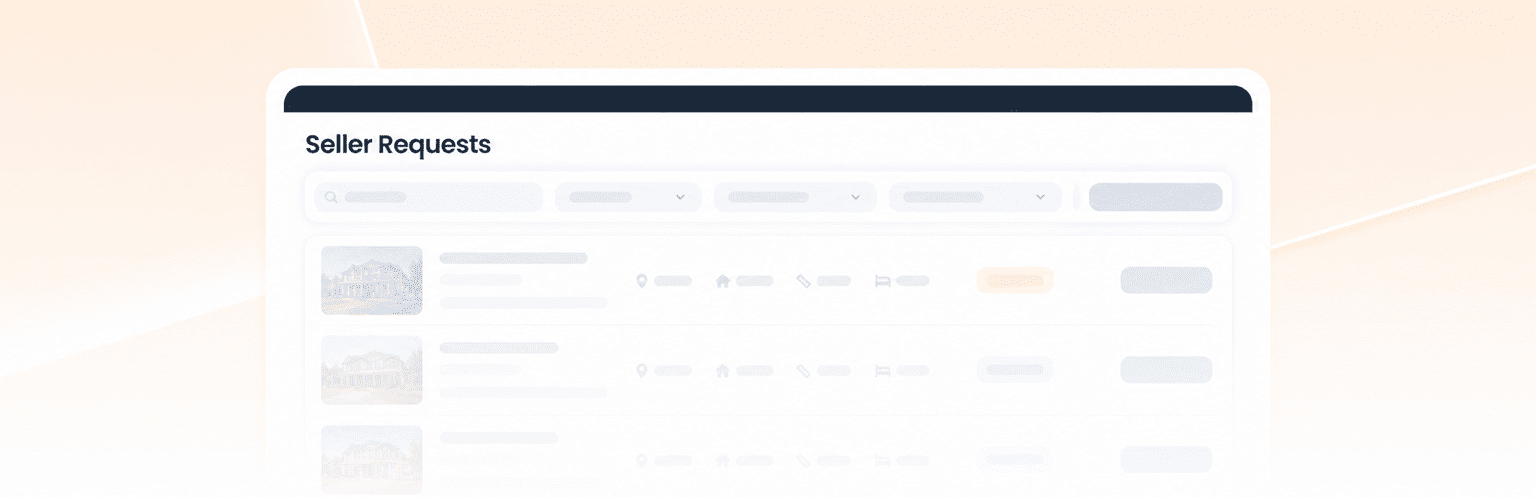
Seller Requests helps you connect with property owners who want to sell their properties. Through AgentPro, you can receive seller leads, contact owners, arrange appointments, and help them sell their properties.
Unlike Met Requests, owners can submit a Seller Request without creating a MetProperty account or logging in.
How Seller Requests Works
Here’s how the process works:
- Request Submitted: The owner submits their property details.
- Agent Matching: MetProperty invites suitable local agents.
- Invitation Accepted: You accept the request and receive the owner’s contact details.
- Owner Contacted: You contact the owner and arrange an appointment.
- Property Marketing: You help prepare and market the property.
- Sale Confirmation: The owner confirms the sale, and MetProperty closes the request.
Owners receive a private Seller Request Tracking link through WhatsApp to check their request progress.
Step 1: Receive and Accept Seller Requests
Review Your Invitations
When you’re invited to a Seller Request, you’ll receive a New Seller Request notification in AgentPro.
Open Seller Requests to review:
- Property location, type, and asking price.
- Property photos and available information.
- The owner’s selling requirements.
Select Accept invitation to receive the lead or Reject invitation to decline.
The owner’s contact details become available after you accept.
How Agent Matching Works
MetProperty initially invites 10 agents for each request.
- The first 5 agents to accept receive the leads.
- Other invitations expire once all five slots are filled.
- If slots remain open, new invitations are sent every 3 days until filled.
- If the property remains unsold after one month, MetProperty invites another batch of agents in the second month.
Step 2: Contact the Owner
Follow Up Before the Deadline
After accepting, check the owner’s preferred contact time and the contact deadline shown in AgentPro.
Use Contact via WhatsApp or the provided phone number to:
- Introduce yourself.
- Understand the owner’s selling needs.
- Discuss the property and asking price.
- Arrange the next steps.
Important: Contact the owner before the deadline. If you don’t follow up, your request may expire automatically and be assigned to another agent.
Update Your Progress
After making a genuine contact attempt, select Mark seller as contacted.
You can also choose a progress status:
- Owner Contacted
- Consultation Ongoing
- Sale In Progress
- Unable To Contact
- Unable To Proceed
Add a note if needed, then save your update.
Step 3: Schedule and Complete an Appointment
Once you’ve contacted the owner, arrange an appointment to discuss the property.
Select Schedule an appointment and enter:
- Date and time.
- Appointment type.
- Meeting location.
During the appointment, collect the information needed to market the property:
- Property details: Size, layout, features, and condition.
- Documents: Relevant ownership and sale-related information.
- Photos and videos: Images, videos, or floor plans.
- Selling expectations: Asking price and marketing preferences.
The owner provides the property information. You’re responsible for arranging the appointment and updating AgentPro.
If plans change, use Update Appointment or Cancel appointment.
After the meeting, select Complete appointment.
Step 4: Market the Property
Choose Your Marketing Method
You can market the property through:
- Your existing marketing channels.
- MetProperty.
- Both methods.
Creating a MetProperty listing is optional. You can continue using your preferred marketing channels.
Create a Listing on MetProperty
If you choose to publish on MetProperty:
- Open Listing in AgentPro.
- Select Create Listing.
- Enter the property details.
- Check the information and publish.
You can monitor listing performance, including leads, views, impressions, and favourites.
You can also use PowerUp tools to improve visibility:
- Repost
- Auto-Repost
- Boost
- Enhanced
For more help, visit the Create Listing Guide and PowerUp Tools Guide in Agent Academy.
Step 5: Confirm a Successful Sale
Update the Listing Status
When a buyer is interested, discuss the offer and asking price with the owner before proceeding.
Keep your MetProperty listing updated using the correct status:
- Available: Property is still for sale.
- Sold: Property has been sold.
- Deactivated: Listing is no longer active.
Owner Confirms the Sale
After the property is sold, the owner must:
- Open their private Seller Request Tracking page.
- Select Confirm Sold with This Agent.
- Complete the WhatsApp confirmation.
MetProperty can then close the Seller Request and stop further agent matching.
Remember: You update the listing status, while the owner confirms the sale.
🚀 Start Using Seller Requests on AgentPro
MetProperty is currently running a limited-time pilot for Seller Requests.
📢All actions are free during this period, including publishing listings and using PowerUp tools.
Join MetProperty to explore AgentPro and try Seller Requests before the pilot ends.
Don’t miss this opportunity to get involved!
Need help? Contact our team for assistance.
